Wednesday, March 10, 2010

Step 8 : Making @live.com.pk id


Next you will see your Windows live ID change options.

There are two options “Use new Windows live email address”, second is “Use your own e-mail address”. We will select Use a new Windows Live e-mail address and it will show New windows live ID box below with @live.com.pk domain.

Here you can choose your @live.com.pk ID of your choice and then click Save (@live.com.pk ID registration will not show if you were trying to register your passport.net credentials ID outside of Pakistan, if then repeat the Step 7 and instead of clicking Change, click Registered Information link to change your location)

Step 7 : Making @live.com.pk id

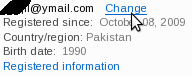
After successful login, Your will see a screen as shown in the image below, with a Change option next to your Email address. Click on change.

Step 6 : Making @live.com.pk id

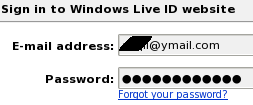
Login using your Email address which you registered few minutes ago with Microsoft passport.net credentials.

Step 5 : Making @live.com.pk id

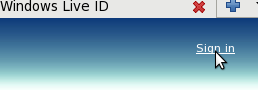
 After you have confirmed, go again to http://passport.net and click on Sign in link from the top right corner.

Step 4 : Making @live.com.pk id

 Microsoft will send an email containing confirmation link to your email address which you have given in the sign up process. Confirm your registration by clicking confirmation link in your email in-box by Microsoft.

Step 3 : Making @live.com.pk id

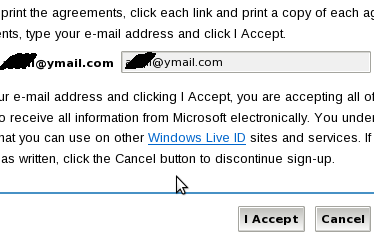
If no error occurs then it will take you to the next page where you will be asked to write your email once again and click on I accept after reading Microsoft terms of use and privacy.

Step 2 : Making @live.com.pk id

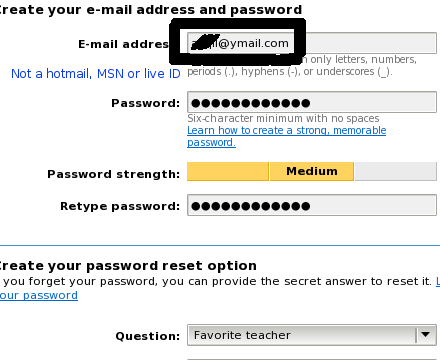
A sign-up page will open, write your NON hotmail, MSN, Live email address here in the email address box and fill other fields and click on Continue button at the end of the page.